Integrating Online Customer Service into Thinkific Course Sales Page: Deploying LiveChat in the Site Footer
The digital products team can add a chat component to the Thinkific site footer to help overseas visitors confirm the content, language, and learning arrangements before purchasing courses.
First, select a course that has actually been sold as the evaluation target. Compile a list of questions that might influence the purchase decision, such as whether prerequisite knowledge is required and which languages are listed on the course page. Using these questions to validate the customer service process will provide a more accurate assessment of whether the tool is suitable for the course team than simply checking if a chat button is present on the page.
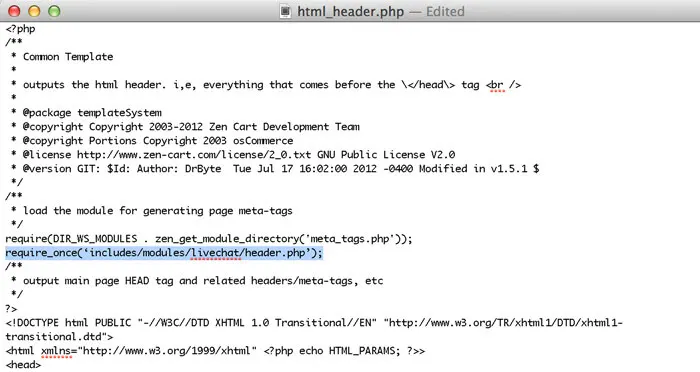
Log in to the LiveChat account you're preparing to host visitors, and copy the installation code for that workspace from the Chat widget area. Then open the Thinkific backend, go to Design your site, and find Site Footer Code in Advanced settings. Paste this code into the footer code area and save the changes. If other footer functions already exist, retain the original code to avoid accidentally deleting related components.
After saving, open the course introduction page from the visitor's perspective and send an inquiry. Agents can log in to the LiveChat web application or desktop application to receive inquiries. It is recommended to separately record whether the chat entry on the computer and mobile phone affects the registration button, and whether the visitor can continue browsing the course after replying. If managing multiple course brands, also verify which workspace the message entered to avoid replying across brands.