Installing LiveChat customer service window on your independent website via Google Tag Manager
Teams that have already deployed GTM on their website can choose the appropriate container to install the customer service components. This article explains account connection, tag templates, and post-launch checks.
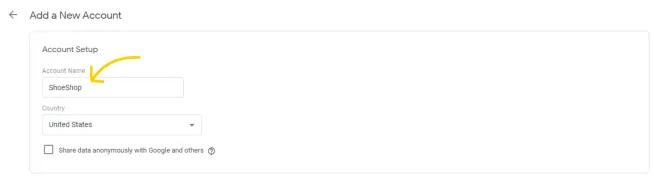
First, confirm which Google Tag Manager container the production site is using. A cross-border team might manage the main brand site, help center, and event page separately, and the names might be similar. Have the person responsible for the website verify the container identification and have someone who can log in to the corresponding Google account assist. This will prevent the installation process from showing as successful, but the page the customer actually visits lacks a chat entry.
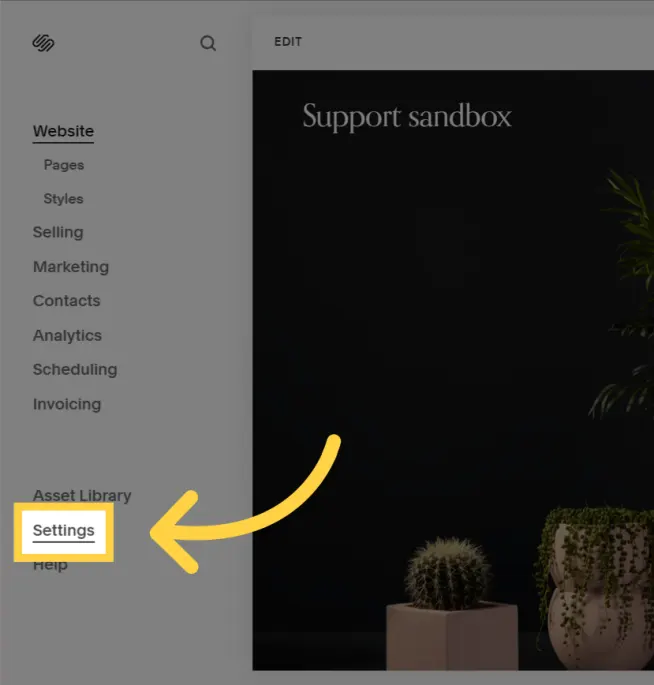
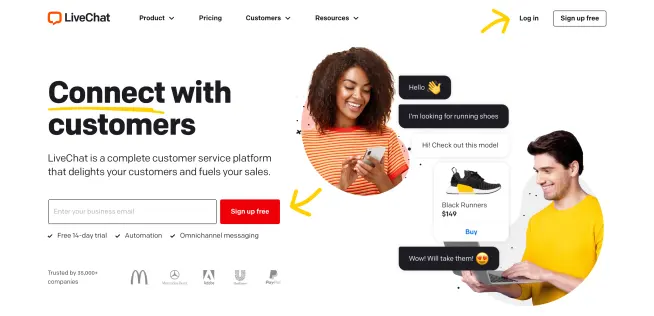
Log in to LiveChat, open the website in Channels under Settings, and select Install via Google Tag Manager. After clicking Connect, log in to Google and verify the authorized parties as prompted. Return and select your GTM account and container in sequence, then perform the installation. If the team publishes tags centrally through a tag administrator, you can also create a new tag in GTM, select the LiveChat template, enter the corresponding workspace's license number, and save.
During verification, the actual production site page is opened from an external browser, a recognizable inquiry is sent, and then the message is retrieved in the target customer service workspace. If chat events also need to be tracked, analysis tags and trigger rules must be configured separately. The acceptance form can record two separate results: whether the customer can contact the team normally, and whether the analysis platform has received the corresponding event.